Quick verdict: I recommend Integrate.io for teams that need to clean and combine data before sending it to business apps or warehouses. Its visual tools and unlimited data allowance are a good fit for several recurring integrations, but the $1,999 monthly starting price is hard to justify for simple imports. You’ll also need someone comfortable with databases to handle the details automation doesn’t cover.
Key Takeaways
- Core includes unlimited data volumes, pipelines, and connectors, without volume-based pricing.
- You can prepare data visually with 220+ built-in functions, alongside SQL and Python options.
- Business-app destinations make Integrate.io useful for operational work, not just warehouse reporting.
- Light ingestion is expensive at the starting price, so smaller projects deserve a cheaper shortlist.
- Database syncing needs ongoing attention, and Python transformations have strict limits on how they can change data.
In this Integrate.io review, I’ll walk you through the cost, the work involved in building a pipeline, and the restrictions that matter after launch. I’ll also explain when I recommend Fivetran, Airbyte, or Hevo instead.
Pros and Cons
Pros
- Core includes unlimited data volumes without volume-based pricing.
- 220+ built-in transformation functions.
- Destinations include business applications as well as warehouses.
- Schedules can lock a specific package version.
- Package definitions can be exported as JSON.
Cons
- The $1,999 monthly starting price is steep for light ingestion.
- Python transformations require identical input and output schemas.
- SQL Server column additions require pipeline intervention.
- Integrate.io’s BigQuery CDC destination requires customer-side deduplication.
What I like most is that Integrate.io helps you turn scattered records into something your team can use. Take a sales team that needs customer details and billing totals in one place: you can prepare that summary and send it to a supported business app.
My main concern is the price if you only need a small slice of those features. Several recurring workflows give you a stronger reason to spend this much. One small import is a harder sell.
How Much Does Integrate.io Cost?
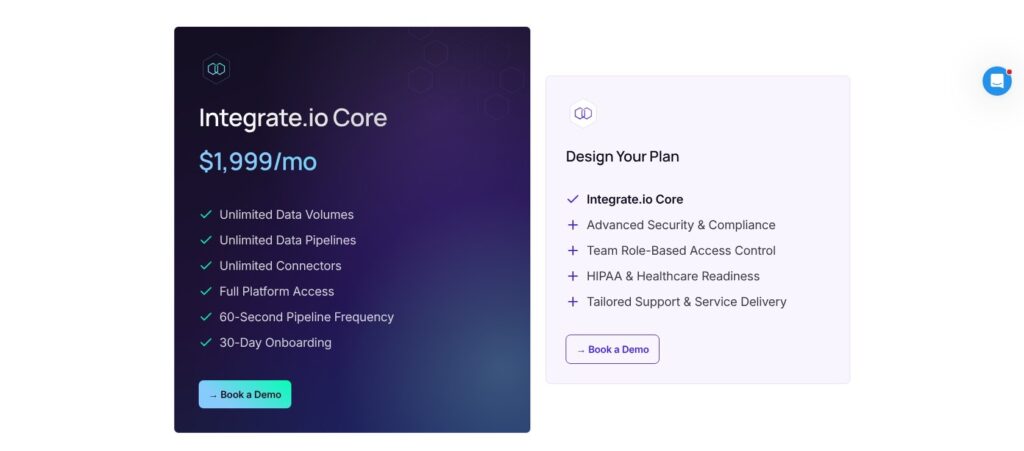
Integrate.io pricing starts at $1,999 per month for Core. The advertised allowance is unlimited data volumes, pipelines, and connectors, so the bill isn’t based on how many records you move.
There are two buying options:
- Core ($1,999/month): For teams with recurring integration work. Includes the unlimited allowance, 60-second pipeline frequency, and 30-day onboarding.
- Design Your Plan (custom quote): For teams needing tailored security, role-based access, HIPAA readiness, and support arrangements.
| Plan | Advertised price | What’s included | Who I recommend it for |
|---|---|---|---|
| Core | $1,999/month | Unlimited data volumes, pipelines, and connectors; 60-second frequency; 30-day onboarding | Teams bringing several recurring integrations into one platform |
| Design Your Plan | Custom quote | Tailored security, access controls, HIPAA readiness, and support | Teams with specific security or contractual requirements |
You also get a 14-day full-feature trial, with no credit card required. Integrate.io lists 150+ sources and destinations and 24/7 support. If you need a guaranteed response time, make that part of the plan discussion.
At the advertised monthly rate, budget $23,988 for twelve months before any individually agreed terms. Ask how billing and cancellation work before committing, since the monthly price alone doesn’t establish when you can leave.
Is Integrate.io Good Value for Money?
I like the breathing room of a price that doesn’t increase with data volume. Still, unlimited volume isn’t unlimited speed: source limits and the work your pipeline performs can affect how quickly records arrive.
For me, value comes down to the work you need done:
- Several recurring workflows: Combining records, applying business rules, and updating apps gives the platform more opportunities to earn its cost.
- A few small warehouse imports: Hevo is my first stop for a lower-cost option.
- Strict security requirements: Budget from a custom quote, not an assumption that every enterprise control comes with Core.
For an operations team connecting billing, customer records, and business apps, Core is my starting recommendation. If you need a business associate agreement (BAA) or specific access restrictions, get a custom quote before spending time on setup.
Getting Started With Integrate.io
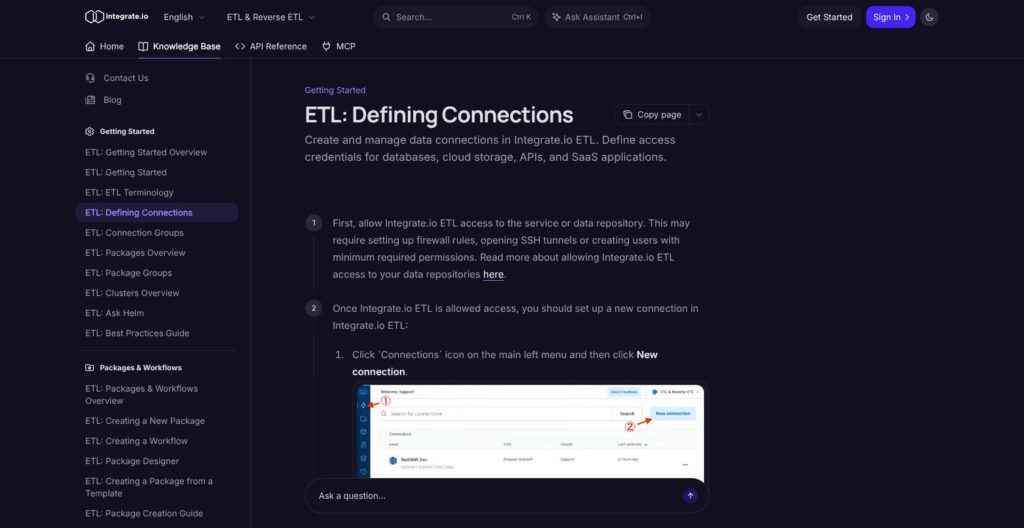
Start by giving Integrate.io access to the systems you want to connect. Depending on your database, you may need to allow its network connections or set up a tunnel, then create a database user with only the permissions it needs.
You then open Connections, choose New connection, select the connection type, enter its details, and test and save it. Repeat this for your destination.
From connections to your first job
There are four product terms to get familiar with:
- Connection: Stores access settings for a source or destination.
- Package: Defines the steps that read, prepare, and deliver your data.
- Job: Runs that package on a cluster, which supplies the computing resources.
- Schedule: Starts jobs automatically at the times you choose.
Keep your first package focused on one useful outcome. For an orders workflow, read the required records, standardize the fields your destination expects, and load the result. Leave the more ambitious branching rules until you can check that basic path.
When you run the package, you can override default variable values for that job. This is useful for processing a particular date range without editing the underlying workflow.
Afterward, review the completed task outputs and any errors. A successful job status is helpful, but you’ll also want to know whether the records make sense: did the join duplicate customers, or did a filter exclude orders you needed?
This is where some database knowledge really helps. I like the option to build visually, but you still need to know what the finished records should look like. Someone on your team has to spot a missing order or an inflated customer total.
Preparing Data With Integrate.io
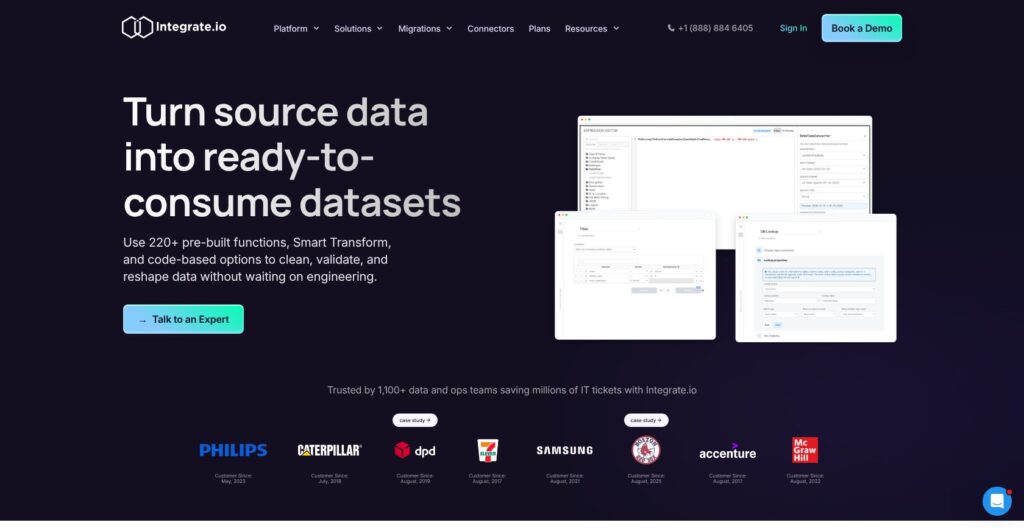
Integrate.io ETL is most appealing when your destination needs data that’s already cleaned and organized. ETL means extracting data, transforming it, and then loading it into the destination, rather than leaving all the preparation until afterward.
You get visual editing, SQL and Python options, and 220+ built-in functions. The visual components cover practical jobs:
- Join customer details to transactions.
- Filter records that don’t belong in the destination.
- Look up information from another dataset.
- Aggregate individual purchases into spending totals.
- Pivot data into a different arrangement.
For a sales team, those steps could produce one customer summary containing account details and total spending, ready to send to a supported business application. That’s a stronger reason to choose Integrate.io than simply having another way to copy tables.
Turning business rules into transformations
Smart Transform generates native functions from selected input and output examples. I like having that option when showing the desired result is easier than writing the expression yourself.
The business rule still needs your judgment. A spending total might mean all purchases, paid invoices, or purchases excluding refunds. Getting that definition right matters more than how the function was created.
If all you need is raw data in a warehouse, compare Fivetran before choosing Integrate.io for these tools. You’ll get more from these features when your destination needs the finished result.
Where Python falls short
The custom Python component requires identical input and output schemas, meaning the fields and their structure must stay the same. It can filter rows, but it isn’t the place to freely add or reshape columns.
The batch payload should also stay within 6 MB, and the designer supports sample testing. I find that restriction disappointing: Python support sounds more flexible than this particular component allows. Use the other visual components when you need to change the columns.
Custom systems have another route through the universal API connector, but check the endpoints and authentication your application requires. If your main project is building reusable custom source connectors, Airbyte’s Connector Builder deserves a closer look instead.
Keeping Your Data in Sync
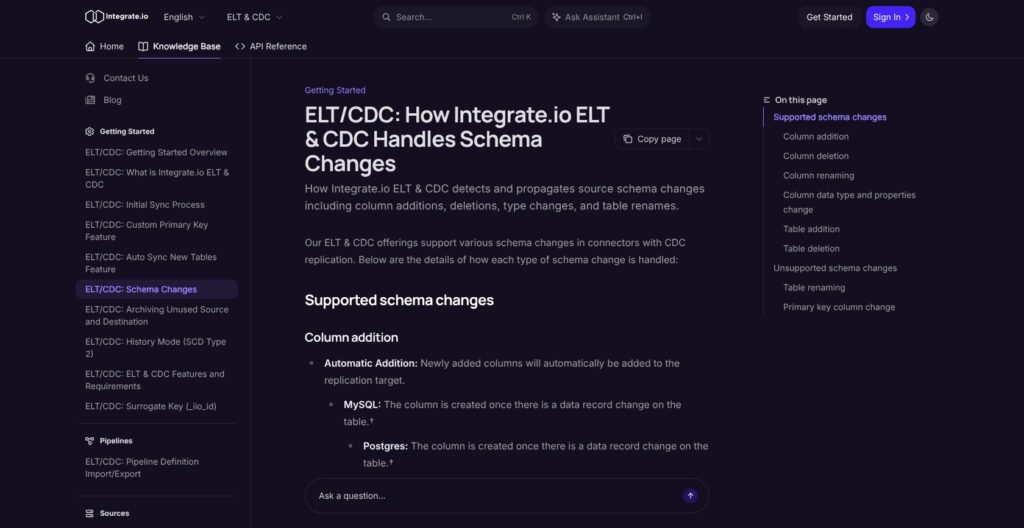
Integrate.io also supports loading data first and preparing it downstream, known as ELT. Its change data capture, or CDC, tools replicate database changes, with named sources including MySQL, PostgreSQL, and SQL Server.
Destinations include Snowflake, BigQuery, Redshift, and S3. Check support for the specific pairing you need before planning the rest of your setup.
What the 60-second frequency means
Synchronization begins with a historical load, followed by ongoing updates. Database sources use log-based replication, while SaaS and API sources use scheduled polling.
The advertised 60-second frequency describes how often updates run. It doesn’t guarantee that every change reaches its destination within a minute. If your team needs fresh records by a particular deadline, the full journey from source to destination is what matters.
The first load also works differently depending on your tables. With numeric primary keys, Integrate.io can split the load into chunks that run in parallel and resume later. Tables with nonnumeric keys don’t get that option, so keep both types in mind when planning a migration.
When your database structure changes
My main reservation about the replication tools is how much attention some table changes still need. A schema is the structure of your tables and columns, and Integrate.io doesn’t handle every schema change automatically:
- SQL Server column additions: Require a pipeline restart and can involve reconfiguring how SQL Server captures changes.
- New columns: Aren’t historically backfilled unless you resync.
- Deleted columns: Remain in the destination, with nulls for new records.
- Renamed tables: Must be selected manually.
- Automatic new-table syncing: Is available only for MySQL and is disabled by default.
Older pipelines may also need an upgrade from support to use the newer options for handling table changes.
Suppose you add a customer classification field. Receiving it on future changes doesn’t mean older records will suddenly contain the historical values your report needs. You’ll need to account for the resync, too.
Will your destination be ready to query?
With Integrate.io’s BigQuery CDC connector, you handle duplicate records yourself, using the __offset and __op fields. BigQuery can do that cleanup, but you need to include it in your setup before relying on the results.
Your source database has requirements, too. The listed minimums are MySQL 5.7 and PostgreSQL 10. MySQL cascading delete and update events aren’t supported, so changes triggered through related tables need particular attention. For PostgreSQL, check the restrictions on generated columns and TRUNCATE operations if you use them.
My advice is to include a table change in your trial. Rename a table or work through a change your team makes regularly, and see what you’ll need to manage afterward.
Managing Your Pipelines
I particularly like the controls for keeping recurring work on track. Integrate.io lets you schedule jobs, see what happened when they ran, and protect live workflows while you edit the next version.
Scheduling and retrying failed jobs
Schedules support intervals and standard cron expressions, a common format for specifying recurring times. Choose the timezone carefully at creation because it can’t be changed afterward.
Overlapping runs are skipped by default, with concurrency available as an option. I like the cautious default: starting a second job while the first is still writing to a destination isn’t always helpful.
A failed job can be retried automatically, subject to these limits:
- Retries apply to the failed job, not the entire schedule.
- You can allow up to five retries.
- Retrying stops when the next enabled scheduled run is within five minutes.
When something goes wrong, you can check the job’s status, progress, runtime, errors, and completed outputs in the interface. You can also see the package, cluster, and variables used for that run. If your team already has monitoring tools, API polling and webhooks provide ways to bring this information into them.
Protecting the version that’s already working
Version locking is one of the features I value most here. A schedule can remain tied to a tested package version while you work on changes, rather than automatically picking up unfinished edits.
Edits autosave as private drafts; saving creates a version. Major versions and rollback are supported, with the last 100 versions accessible. Ask your account manager to enable version control rather than assuming it’s active from the start.
You can move packages between Integrate.io accounts through JSON export and import. Named connections are matched automatically, giving you a practical development-to-production route: check the matches, select a tested major version, and lock the schedule to it.
You can also change certain connections when a job runs, which helps when moving between environments. This works for database sources, database destinations, and workflow Execute SQL components, provided the connection type and schema match. It doesn’t extend to swapping unrelated SaaS connections.
I’m glad you can export your work, although switching platforms still takes rebuilding. Another engine won’t run Integrate.io’s JSON packages directly.
Security and retention
Integrate.io lists encryption in transit and at rest, plus an annual SOC 2 audit with reports available on request. It supports SSO, two-factor authentication, and role-based access; Ireland processing and a BAA are available options.
The retention policy distinguishes between different kinds of data:
- Data held for processing is removed when processing finishes.
- Temporary copy or unload data is removed within 24 hours.
- Support job logs are retained for 30 days, without customer data in those logs.
For sensitive workloads, get your processing location, access controls, and retention requirements written into the contract. If you need a BAA, agree exactly which work it covers. That gives you something concrete to assess before moving customer records.
Integrate.io’s AI Features
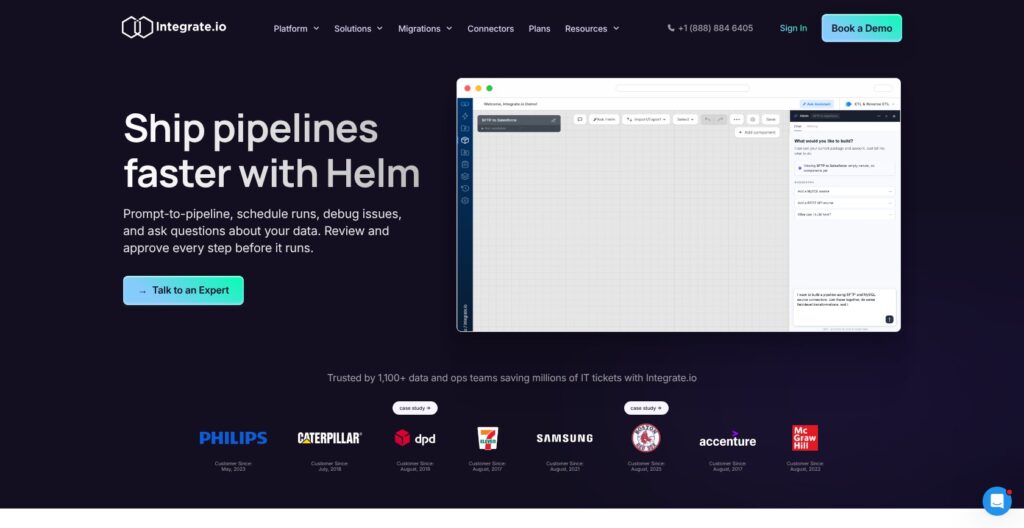
Integrate.io offers two different ways to involve AI: its built-in Helm copilot and MCP access for a compatible external assistant. The choice is welcome. Just be clear about which assistant has permission to change or run your pipelines.
Helm helps you build and understand pipelines
Helm can:
- Draft editable pipelines.
- Help create schedules.
- Explain job failures.
Its workflow includes human review, approval, and version history. Once approved, the workflow executes as fixed platform logic rather than asking a model to reinterpret your request every time it runs.
I like that you can review the instructions before putting them to work. Once approved, you have a repeatable workflow to manage. Automated monitoring is handled separately from creating the pipeline.
MCP gives your own assistant access
MCP is a standard for connecting AI clients to tools. Integrate.io’s MCP tools let a compatible client and your chosen model inspect, build, edit, run, and monitor pipelines.
Some of those actions only read information; others change the account or start work. Helm’s approval flow doesn’t automatically cover external MCP calls, so an assistant’s permissions deserve the same care as any other access.
New schedules stay disabled unless you explicitly enable them. For creating, updating, or switching schedules on and off, the dry_run option lets you check the request without making the change. Be more careful with run_package, which starts a job, and retry_job, which starts another run alongside the original job record.
Custom permissions let you restrict access to groups of packages or connections. An assistant can see a schedule only if it has access to every package that schedule targets. Check that your account includes the controls you need.
Start by granting access to just the work you want help with, particularly if a pipeline updates business apps. For me, AI assistance is a useful extra. The data preparation and delivery tools still need to justify the $1,999 monthly cost.
How Does Integrate.io Compare to Competitors?
For straightforward warehouse imports, my shortlist looks different from one for preparing records for business apps. These are the three alternatives I recommend comparing, depending on the job you need done:
- For managed ingestion: Fivetran belongs on your shortlist. It charges by monthly active rows per connection, with a low-volume free option and fixed annual enterprise agreements under certain conditions. Compare a quote for the same workload and update patterns before deciding which pricing model suits you.
- For custom source connectors: Airbyte is my first choice to explore. Connector Builder supports visual and YAML editing, with exportable YAML source-connector definitions. It doesn’t build destination connectors.
- For a smaller budget: Hevo Data deserves an earlier look. Its free plan allows up to one million events monthly, limited connectors, hourly scheduling, and five users. The five-million-event Starter selection costs $299 monthly or $265 per month billed annually; those prices don’t cover every configuration.
| Tool | Main reason to consider it | Pricing or feature difference | What to watch |
|---|---|---|---|
| Integrate.io | Prepare data before delivering it to warehouses or business apps | Core is $1,999/month with unlimited data volumes | High entry price and connector-specific CDC work |
| Fivetran | Managed warehouse ingestion | Monthly active rows per connection; fixed annual agreements under certain conditions | Compare actual data volumes and update patterns |
| Airbyte | Develop custom source connectors | Connector Builder exports YAML definitions | Builder doesn’t create destination connectors |
| Hevo Data | Start with a smaller budget | Free plan and event-based paid selections | Connector and scheduling allowances vary by plan |
For a fair cost comparison, include the work outside the subscription: preparing records, handling table changes, and maintaining any destination-side cleanup. A cheaper ingestion bill isn’t necessarily the cheaper complete workflow.
Equally, don’t pay Integrate.io’s premium just because unlimited volume sounds reassuring. Pay it when the preparation and delivery features address jobs your team already needs done.
How I Reviewed Integrate.io
I assessed Integrate.io’s published pricing, documented setup and transformation workflows, feature restrictions, scheduling, security, and AI controls. I compared competing offerings from Fivetran, Airbyte, and Hevo, focusing on buyer fit and the work each approach leaves with your team.
Prices current as of October 2026.
Should You Choose Integrate.io?
I recommend Integrate.io for recurring data preparation across several systems, especially when the destination is a business app that needs usable records rather than raw tables. Visual transformations and version-locked schedules give that work a sensible home.
For a small ingestion-only project, my advice is to look elsewhere first. Hevo offers a lower-cost starting point, while Airbyte deserves priority when custom source development is the central requirement. Fivetran remains worth comparing for managed warehouse ingestion.
The deciding question is whether you’ll use enough of Integrate.io to justify the monthly commitment, with someone available to manage the remaining database details.
Use the 14-day trial for one real workflow. Include the customer summary, business rule, or destination requirement that makes the project worthwhile, not just the easiest table to import.
Integrate.io FAQ
Is Integrate.io free?
Integrate.io offers a 14-day full-feature trial without a credit card. No permanent free tier is listed, and Core starts at $1,999 per month.
Is Integrate.io an ETL or ELT tool?
Both. Its ETL tools prepare data before delivery, while ELT and CDC support replication for downstream processing. Choose based on whether your destination needs raw data or ready-to-use records.
Does Integrate.io require programming?
Not for every pipeline. Visual components handle common transformations, with SQL and Python available for additional logic. You’ll still need technical understanding for database access, data structure, and troubleshooting.
Can I export Integrate.io pipelines?
Yes, packages can be exported as JSON and imported into other Integrate.io accounts. Those exports don’t run directly in another engine, so switching platforms still requires translation or rebuilding.