Quick verdict: Skyvia is a strong choice for small and midsize teams that need warehouse reporting and everyday transfers between business apps, without buying a separate tool for each job. My recommendation in this Skyvia review is to start with Standard if you need hourly updates or more flexible data preparation, but expect to keep an eye on changing source fields and failed records.
Key Takeaways
- Skyvia combines warehouse replication with app imports, CSV exports, and two-way synchronization.
- Standard is the best starting point for teams needing hourly schedules and advanced field mappings.
- Replication can create destination tables, saving you from preparing every table yourself.
- New source fields aren’t automatically included, and renamed or deleted fields can break replication.
- Two-way sync can duplicate overlapping records initially, and later conflicts discard target-side changes.
Skyvia belongs on your shortlist of managed ELT tools, which move data into a warehouse for preparation and analysis. Its appeal goes beyond reporting, though. You can also update business apps and move records between systems with different structures.
I’ll explain where that flexibility pays off, which plan makes sense, and the limitations that deserve your attention before you commit.
Pros and Cons
Pros
- Replication can create destination tables automatically.
- Import supports UPSERT and mapping between different structures.
- Standard includes a visual tool for transforming data.
- Professional lets you coordinate jobs with Control Flow.
- You only pay for the Skyvia products you need.
Cons
- Replication does not automatically pick up new source fields.
- Two-way conflicts discard target changes to the same record.
- ODBC connections cannot run replication or synchronization.
- Error and usage email notifications are disabled by default.
I like having warehouse loading and app updates in the same product. My main reservation is the upkeep: someone still needs to adjust integrations when fields change and check which records failed.
How Much Does Skyvia Cost?
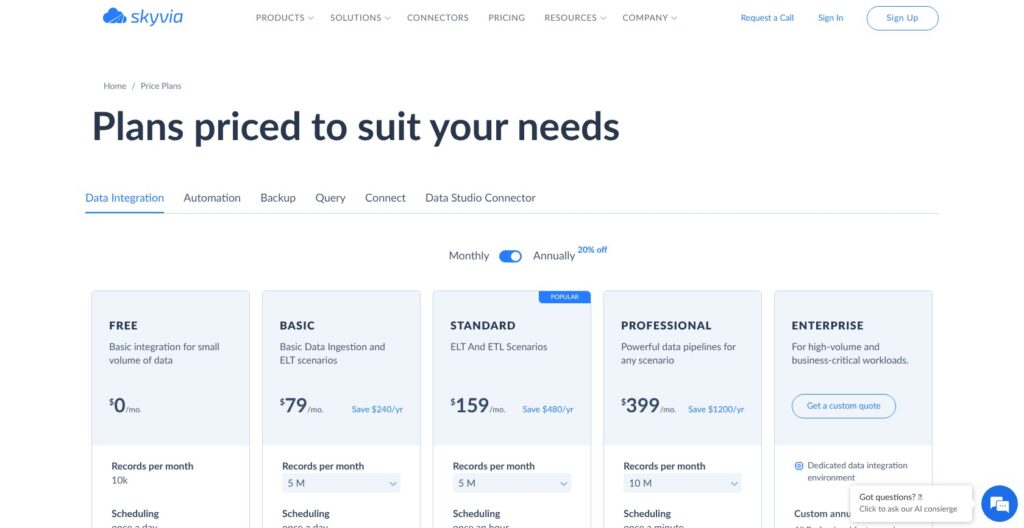
Skyvia pricing depends on both your feature tier and your monthly processed-record allowance. Treat the advertised paid prices as starting prices, not a flat rate for any workload.
The Data Integration plans break down like this:
- Free ($0): For small, basic integrations, with 10,000 records monthly. After the trial, you must request this plan and receive approval.
- Basic ($99 monthly): For straightforward imports, exports, synchronization, and replication that can run on a daily schedule.
- Standard ($199 monthly): My pick for hourly reporting and more involved data preparation. It adds advanced mappings and the visual Data Flow tool.
- Professional ($499 monthly): For teams needing coordinated workflows through Control Flow, unlimited scheduled integrations, or schedules as frequent as once per minute.
- Enterprise (custom annual quote): For larger requirements, with Professional features, a dedicated virtual machine, unlimited record volume, priority support, and onboarding consultations.
| Plan | Starting monthly price | Monthly equivalent with yearly billing | Scheduled integrations | Fastest schedule |
|---|---|---|---|---|
| Free | $0 | $0 | 2, with a listed 30-day expiration | Daily |
| Basic | $99 | $79 | 5 | Daily |
| Standard | $199 | $159 | 50 | Hourly |
| Professional | $499 | $399 | Unlimited | Once per minute |
| Enterprise | Custom annual quote | Custom annual quote | Unlimited | Once per minute |
Basic, Standard, and Professional offer selectable volumes up to 200 million records monthly. Backup, Query, Automation, and Connect are separate subscriptions, so you don’t need to buy them to use Data Integration.
Is Skyvia Good Value for Money?
Standard offers the most useful balance for a small team whose requirements go beyond daily copying. Basic’s restrictions aren’t just about frequency; they also affect how you prepare records.
On Basic, you can’t:
- Use formulas to change field values or look up values in the source.
- Use relation mappings to map relationships between records.
- Split an import across related destination tables.
- Return generated values to the source.
Looking up matching records in the destination is allowed. Still, those exclusions can push a small dataset onto Standard just as quickly as an hourly reporting requirement.
Billing needs attention too. Skyvia counts successfully processed records, not unique people or accounts. Inserts, updates, and deletes count, even when an update writes values already present. Synchronization counts changes on both sides, and exports count CSV output rows.
Suppose you copy 100,000 customer records daily for 30 days. That’s three million processed records before other integrations. Incremental loading, which copies only changes after the initial load, can make a substantial difference to that calculation.
Standard and Professional allow paid extra records, but you must enable the option. Otherwise, an integration already running can finish after exceeding your allowance, while subsequent manual and scheduled starts are blocked.
New accounts receive a 14-day trial, including Professional Data Integration with five million records. Don’t let the transition catch you out: an expired subscription disables schedules, and restoring service doesn’t automatically re-enable them.
Reviewer’s Notes: Choose Standard for hourly reports, advanced mappings, and up to 50 scheduled integrations. Professional earns its higher price when you need jobs coordinated or run more frequently, not simply because your dataset is growing.
Getting Started With Skyvia
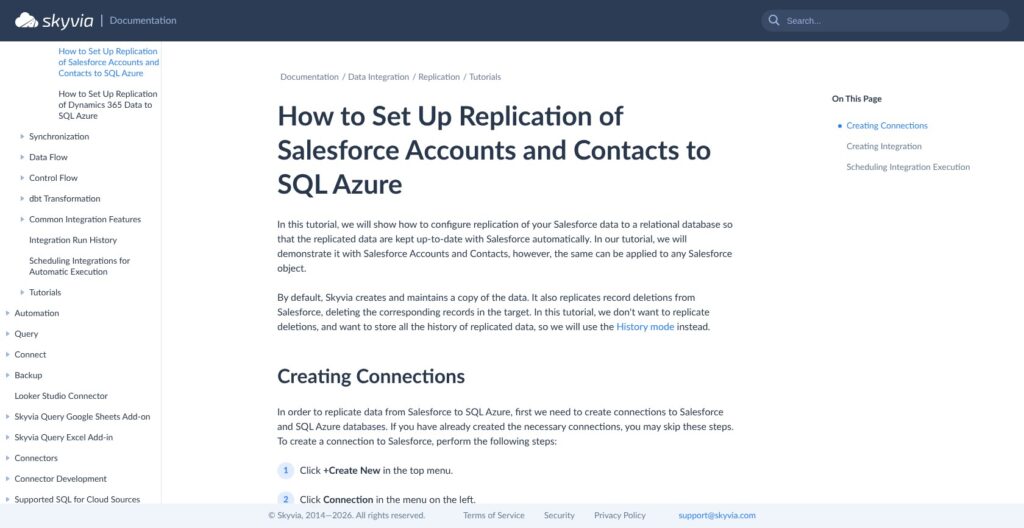
Skyvia’s Salesforce-to-Azure SQL tutorial shows a setup built around connecting two systems, selecting records, and scheduling replication. Automatic table creation is a welcome part of that workflow. You can focus on what belongs in the destination rather than building its entire structure first.
The bigger decisions concern access and history. A current copy of your CRM and a record of how it changed serve different reporting needs.
Connect Salesforce and Azure SQL
Begin with +Create New > Connection, select Salesforce, and name the connection. Choose the appropriate environment; the tutorial recommends a sandbox, Salesforce’s separate environment for working away from production.
Salesforce offers two authentication choices. OAuth 2.0 stores the access token created when you sign in, rather than your Salesforce credentials. The username-and-password option stores the supplied credentials and security token.
I prefer the OAuth approach where it meets the team’s access requirements because it avoids storing those Salesforce credentials in the connection.
For Azure SQL, choose the SQL Server connector and supply the server, user ID, password, and database. The destination account needs permission to create and drop tables as well as load records. Incremental database replication creates temporary tables during runs, so a reporting account with limited permissions may not be enough.
Decide whether you need current records or history
Create a Replication integration, select Salesforce as the source and Azure SQL as the target, then choose the Account and Contact objects.
The tutorial uses History mode for both. This preserves the history of replicated changes rather than maintaining only the latest copy. If your reports need to explain how records changed over time, that distinction matters.
It also demonstrates hashing Contact email fields. Selecting Hashed replaces each email with a derived value instead of copying the original address. That’s useful when you don’t want readable emails in the destination, but it doesn’t remove identifying information from other fields.
Review the first copy, then schedule updates
Select Run, then open the Monitor tab’s Run History. Opening an individual run displays History Details.
Account for the first full copy in both your record allowance and destination storage. A source with little daily activity can still hold years of existing records.
The tutorial schedules hourly weekday runs between 9:00 and 18:00. You can control recurrence, weekdays, time restrictions, and the starting time within your plan’s limits.
Remember that an hourly schedule isn’t hourly delivery. The integration still needs to complete successfully before that data is ready for reports.
How Well Does Skyvia Handle Warehouse Replication?
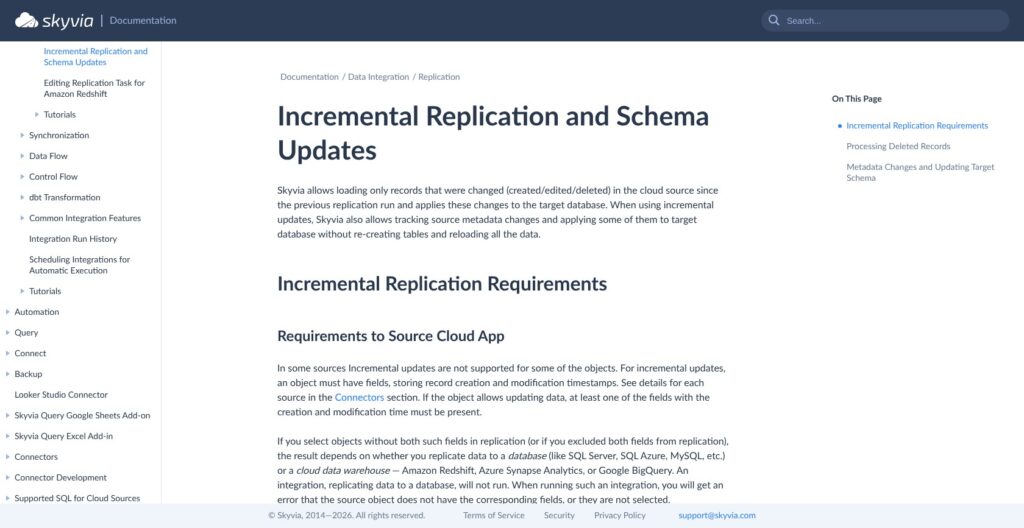
Skyvia replication is a good fit when you want a destination copy that follows the source’s structure. It can create tables automatically, but it isn’t the place to freely rearrange fields or load them into a differently structured destination. Use Import or Data Flow for that.
Supported sources include cloud apps and selected databases, including SQL Server, MySQL, PostgreSQL, Oracle, and BigQuery. Destinations include supported databases and warehouses, plus Airtable and Elasticsearch.
Warehouse connections may need storage settings alongside database credentials. Skyvia places CSV files in a temporary staging area, then tells the warehouse to import them.
I like the table-naming options for teams consolidating multiple accounts from one app. You can add prefixes or choose custom names, while Skyvia handles unsupported characters and names that exceed the destination’s length limits. That gives you a practical way to keep those accounts separate in one database.
Incremental loading depends on the records you select
A connector’s presence doesn’t guarantee that every object can load incrementally. Skyvia needs a unique record identifier, known as a primary key, plus suitable creation and modification timestamps.
Missing timestamps have different consequences:
- Without a creation timestamp, subsequent warehouse runs may update edited records without adding newly created ones.
- Without a modification timestamp, new records can arrive while later edits to existing records are missed.
- Without either timestamp, database replication can fail. The documented warehouse behavior can load the object initially, then leave it unchanged on subsequent incremental runs.
For unsupported objects, a separate integration that reloads everything less frequently is a practical workaround. Include those full copies in your record budget rather than assuming every run will process only changes.
Deletions also depend on what the source exposes. Skyvia can apply Salesforce soft deletes while their deletion information remains available, but hard deletes leave no information to track. You can ignore deletions or mark destination rows with _is_deleted instead of removing them.
Source-field changes still need your attention
My main frustration is that replication doesn’t discover source changes automatically. Add a CRM field and it won’t appear in your replicated data. Rename or delete a selected field or object, and the integration can fail until you update its configuration.
Some connectors also require you to clear their stored metadata cache before editing. That’s the saved information Skyvia uses about the source’s available objects and fields.
The Update Schema setting sounds broader than it is. A schema is the arrangement of tables and columns; this option applies supported changes from your replication configuration to the destination. It doesn’t independently discover changes in the source.
Historical data needs separate consideration:
- Newly added columns initially contain NULL values for existing rows, meaning no value has been filled in.
- Newly added objects don’t automatically receive a complete historical load.
- Renames can leave old tables or columns behind alongside the new ones.
For a fairly stable CRM, this is manageable. If your team changes fields constantly, Fivetran’s automatic schema handling is a compelling reason to compare alternatives.
Can Skyvia Handle Transformations and Two-Way Sync?
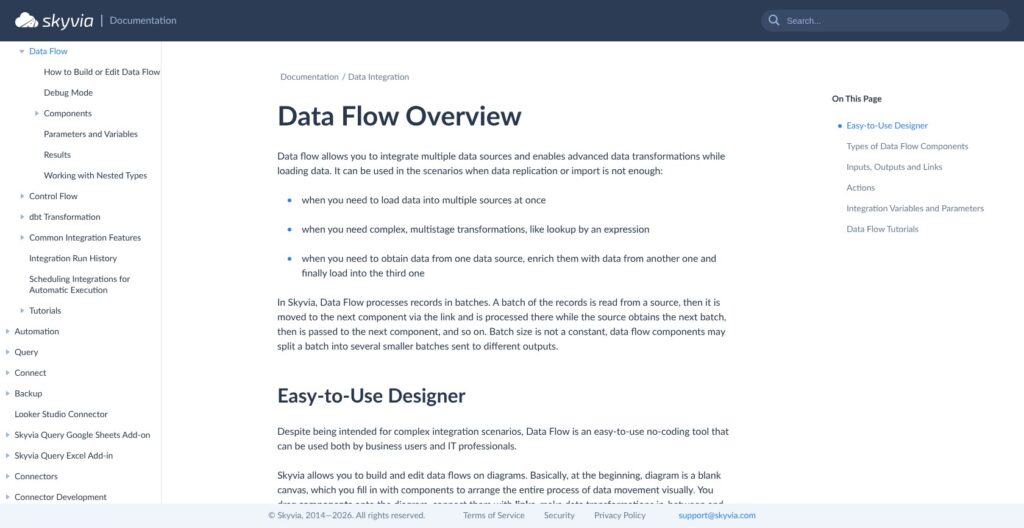
Yes, and this is where Skyvia becomes more interesting than a straightforward warehouse-copying tool. You can match fields between different systems, prepare records visually, and send updates in both directions.
The important distinction is between changing the data and coordinating the jobs that move it. Skyvia gives those responsibilities separate tools.
Import is the right choice for different structures
Import moves records in one direction between CSV files, apps, and databases, with mappings that accommodate different source and destination structures. It supports inserting, updating, and deleting records.
UPSERT is especially useful: it updates a matching record if one exists and inserts a new record if it doesn’t.
On eligible plans, Import can load query results, split one source across related destination tables, and return generated values to the source after INSERT or UPSERT operations.
Imagine loading database records into Salesforce and needing the newly generated Salesforce IDs back in your database. The Returning feature is designed for that job. Choose Import for this rather than replication.
Data Flow prepares records; Control Flow manages the sequence
Standard’s Data Flow lets you arrange components on a diagram and connect the steps records travel through. You can reshape data, enrich it with information from another source, and send results to one or more destinations.
It processes records in batches. Components with error outputs can route failed records separately with an error message, giving you a way to handle them differently from successful records.
Data Flow can also retain values between runs. For example, a flow could save the highest processed ID and use it to select new records next time, provided newly created records always receive higher IDs. It’s a useful option for custom loading logic, but that assumption must match your source.
Professional’s Control Flow handles the sequence around those jobs. It can run integrations conditionally or in parallel and use Try Catch branches to follow an error-handling path when a step fails.
One caveat matters: Execute Integration treats integration-level problems, such as an unavailable connection, as failures. A successful step doesn’t confirm every record loaded. Keep record-level results in view rather than relying only on the overall workflow status.
For formulas, the expression editor includes validation and previews using values you provide. An optional AI assistant can create, modify, or suggest fixes to expressions. I like having help with the formula-writing side, but the output still needs checking against the result you actually want.
Teams that prefer preparing data inside the destination can also run a Git-linked dbt project through dbt Core hosted by Skyvia.
Two-way sync needs a clear winner
Synchronization applies changes in both directions, but its first run isn’t a deduplication exercise. It copies records both ways without checking whether they’re identical, then builds an ID map linking originals to their copies.
If both systems already contain overlapping contacts, that can create duplicates. Starting with one side empty is the safer documented approach.
Later runs track changes through cloud timestamp fields or database tracking tables and triggers. Database tables need automatically generated primary keys. Cloud objects need supported insert and update operations plus suitable timestamp fields.
The conflict rule is less forgiving than some buyers may expect. Suppose one person changes a contact’s email in the source while another changes its phone number in the target. Skyvia favors the source record and discards the target’s phone edit, even though the changes affected different fields.
I recommend two-way sync only when your team accepts that priority rule. For independently edited CRMs, it’s a significant limitation. If you only need updates traveling one way, Import is the better fit.
Connectors, Local Databases, and Ongoing Maintenance
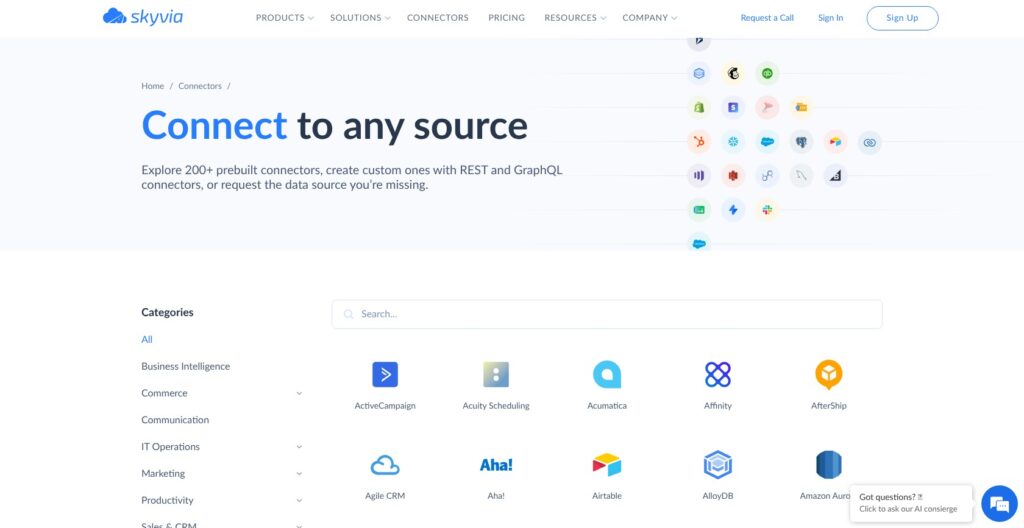
Skyvia lists more than 200 connectors, but the useful question is whether your exact objects support the operations you need. A Salesforce or HubSpot listing doesn’t mean every object works equally across replication, synchronization, and backup.
ODBC broadens access through installed database drivers, but it doesn’t remove those limitations. ODBC doesn’t support replication or synchronization, and it also excludes Backup and Connect. Returning generated values from an ODBC import target isn’t supported either.
If a missing native connector is central to your project, Airbyte’s connector-building options deserve a look rather than assuming ODBC will fill the gap.
Local access comes with a computer to maintain
Skyvia’s Windows Agent connects to databases behind a firewall. It initiates an outbound HTTPS connection on port 443, so it doesn’t require a dedicated external IP.
The Agent computer must stay running with internet and database access. ODBC also requires the Agent, with its driver installed on that same computer. Their 32-bit or 64-bit versions must match.
That’s a reasonable arrangement for local data, but it adds a machine your team needs to keep available.
Turn on notifications, then keep checking run details
Error and usage emails are disabled by default. Enable both and use the test-notification option to check that they reach the intended recipients.
Even then, email isn’t a complete account of failures. Error alerts cover complete integration or task failures, not every partially failed record. Skyvia sends only the first error notification within an hour, and frequently scheduled integrations can be limited to one notification per integration per day.
Give someone responsibility for run details, record usage, and any Agent computer. Otherwise, a scheduled job could keep failing without anyone following up.
How Does Skyvia Compare With Alternatives?
Skyvia’s strongest argument is combining warehouse loading with app-to-app data work. The alternatives become more attractive when your priority is reducing source-change maintenance or building connections yourself.
- Fivetran: My stronger recommendation when changing source structures are the main concern. It documents automatic schema-change propagation, with options to allow all new data, allow new columns only, or block additions. Connector-specific restrictions still apply. Skyvia is more appealing when you also need imports and two-way synchronization between business systems.
- Airbyte: The stronger candidate when you need to build or modify a connector. Its connectors are open source, and it offers Connector Builder plus a Python development kit. Support levels vary, and custom connectors need someone who understands their logic. Favor Skyvia when its existing connectors cover the job and visual workflow configuration suits your team better.
Neither is automatically the cheaper option. Compare Skyvia’s processed-record estimate and required feature tier against your actual workload, not just a competitor’s headline price.
I recommend choosing around the task that takes up most of your team’s time. Skyvia brings app updates and warehouse loading together. Fivetran is more appealing for automatic schema handling, while Airbyte gives you more options for building a connector.
How I Reviewed Skyvia
I assessed Skyvia’s documented features, pricing, setup workflow, connector requirements, and maintenance limitations against the needs of small and midsize data teams. I also compared its approach with Fivetran and Airbyte, focusing on plan fit, source changes, and synchronization trade-offs.
Prices and plan details are current as of October 2026. Selected record volume and separately subscribed products affect the total.
Should You Choose Skyvia?
Choose Skyvia when your team needs warehouse copies and regular updates between business apps, and its connectors support your actual records and operations. I particularly like that you can use straightforward replication for reporting while keeping more involved Import and Data Flow jobs in the same product.
Standard is my default recommendation for teams needing hourly updates or advanced mappings. Basic makes sense for simple daily transfers. Professional is worth the upgrade when jobs need coordinated execution or more frequent schedules.
Skip Skyvia if automatic source-field discovery is a must-have, and compare Fivetran instead. Put Airbyte higher on your list if custom connector development is central to the project.
For a small team juggling reports and app updates, having those jobs in one place is a real advantage. Just include time for checking failed records and keeping your selected fields up to date.
Frequently Asked Questions
Is Skyvia free?
Skyvia has a Free Data Integration plan with 10,000 records monthly. After the 14-day trial, you must request the Free plan and receive approval.
Does Skyvia support real-time replication?
Professional and Enterprise support schedules as frequent as once per minute. That isn’t event-driven streaming or a guarantee that data arrives within one minute.
Does Skyvia automatically handle schema changes?
No. Source changes require updates to the replication configuration. Update Schema applies supported changes to the destination, but doesn’t automatically discover new source fields or fill historical values in newly added columns.
Can Skyvia synchronize two populated CRMs?
Potentially, depending on connector and object support. Overlapping records can duplicate on the first run. Later conflicts favor the designated source record, even when people changed different fields in each system.