
When you connect Shopify to Power BI, you gain a whole world of insight into your products, customers, and business performance.
But as Shopify and Power BI do not integrate automatically, how do you make this connection? You can import an order export, use a connector for scheduled updates, or move your Shopify data through a warehouse. This guide explains the options and takes you through a connector-based setup.
The Benefits of Using Shopify with Power BI
You can unlock a range of benefits when you use Shopify together with Power BI. Power BI provides insight from Shopify data, giving you a deeper understanding of your business and enabling you to make better decisions moving forward.
A variety of reports and visualizations are available in the tool, making it simple to gain and act on the analytics from your data. Additionally, you can set an automated update schedule so that reports are based on regularly refreshed information.
Collaboration and sharing within Power BI allow teams and stakeholders to work together using the insight provided. Access depends on your licenses, workspace settings, and permissions: connecting your store does not automatically make its reports available to everyone.
How to Connect Shopify to Power BI: A Step-by-Step Guide
How do you actually connect Shopify to Power BI? Follow our step-by-step guide to choose a connection method, import your data, and set up updates.
Before starting the connector walkthrough, have Power BI Desktop on a Windows computer, permission to install a Shopify app, and a Power BI service account for publishing and scheduled refresh. Power BI Desktop is the report-building application; the Power BI service is where you publish and share the results online.
Step 1: Select Your Connector
For an automated connection, select a tool with the capability to connect the two solutions. This tool will bridge the gap between the two solutions so Power BI can access Shopify data. For a one-off report, a CSV export may be enough.
| Connection method | When it makes sense | Main limitation |
|---|---|---|
| Shopify CSV export into Power BI | A one-off analysis or an initial report | You must export and replace the data yourself |
| Third-party connector | Recurring store reports without building an API integration | Subscription fees, data limits, and refresh frequency vary |
| Shopify data in a warehouse | Combining store data with other business systems | Requires a data pipeline, warehouse setup, and ongoing maintenance |
For the manual option, open Orders > Export in Shopify, choose your orders, and download the file. In Power BI Desktop, choose Get data > Text/CSV and import it. Shopify’s order-export guide explains the available fields; multi-item orders can span several rows.
As you choose the right tool, consider the following:
- User-friendliness: It can be difficult to connect Shopify with Power BI, so look for a tool that makes this process simple and straightforward.
- Reputation: There are a few options at your disposal, but not all will be equal. Take a look at user testimonies and reviews as you make your choice.
- Features: Make sure the tool offers the functionality you need, for example, automated data syncing with manual control.
- Data coverage: Check row limits, historical orders, refunds, and the specific fields your report needs before subscribing.
The following steps use Power BI Connector by Tempo, previously associated with Alpha Serve, as a concrete example. Its Basic plan costs US$29 per month, with two data sources and 5,000 rows per table. Professional costs US$89 per month and Unlimited costs US$249 per month; both list unlimited rows. A 14-day trial is available. These are connector charges, separate from Power BI licensing.
Step 2: Connect Shopify and Power BI through the Tool
Each tool will have its own process of integration. For Tempo, start with its Shopify app installation and create the data source that Power BI will read:
- Install Power BI Connector by Tempo from the Shopify App Store. Review the requested data access and approve your chosen subscription or trial.
- In Shopify, open Apps > Power BI Connector by Tempo, then select New data source.
- Give it a name, add a description, and choose the time zone for date/time fields.
- Select the tables, fields, and date filters you need. Start with a limited reporting period so you can check the result before importing more history. Keep the IDs needed to relate your tables.
- Select Save, return to Data sources, and select Generate. Wait until the status becomes READY before connecting Power BI.
You may have specific sets of data within your Shopify account that you wish to send to Power BI. Select the data fields you want to process in the connector; these may include order values, product lists, customer data, and others. Make sure to select all of the datasets that you will need in your analysis.
For instance, if you wish to analyze order frequency across a set period of time, you may decide to import order data and product lists so that Power BI can see which products are being ordered. Include the order-line records and matching IDs needed to connect those tables.
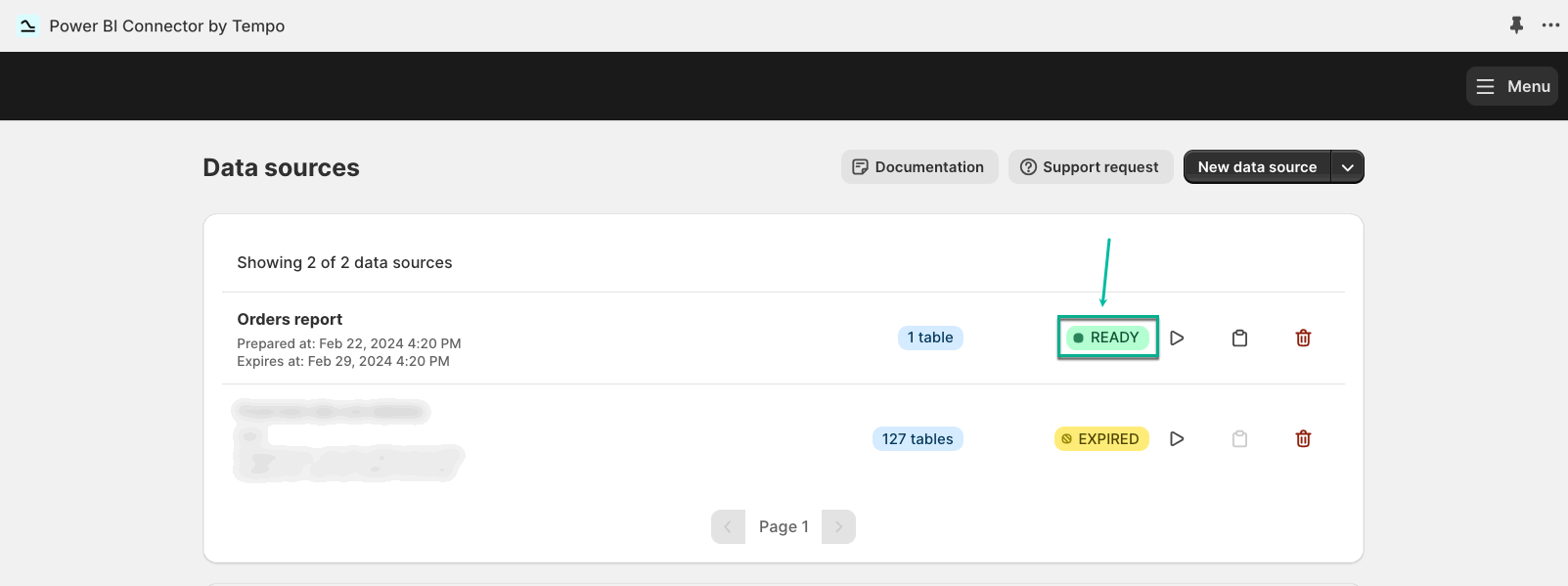
The data source must be ready before export. Interface example: Tempo documentation.
Step 3: Send Data to Power BI
With your source ready, connect its OData feed to Power BI Desktop:
- Use the connector’s Copy link icon to copy the data-source URL.
- In Power BI Desktop, select Get data > OData feed, paste the URL, and select OK.
- Choose Basic authentication. In the connector, open Menu > Settings and use its supplied Login and Password credentials. These are the feed credentials, not your Shopify account password.
- Select Connect, choose the required tables, and select Load. Choose Transform Data if you need to clean the tables before loading them.
If you connect several stores, apply credentials at the specific feed URL level so Power BI does not reuse one store’s credentials for another. The connector’s export instructions explain this setting.
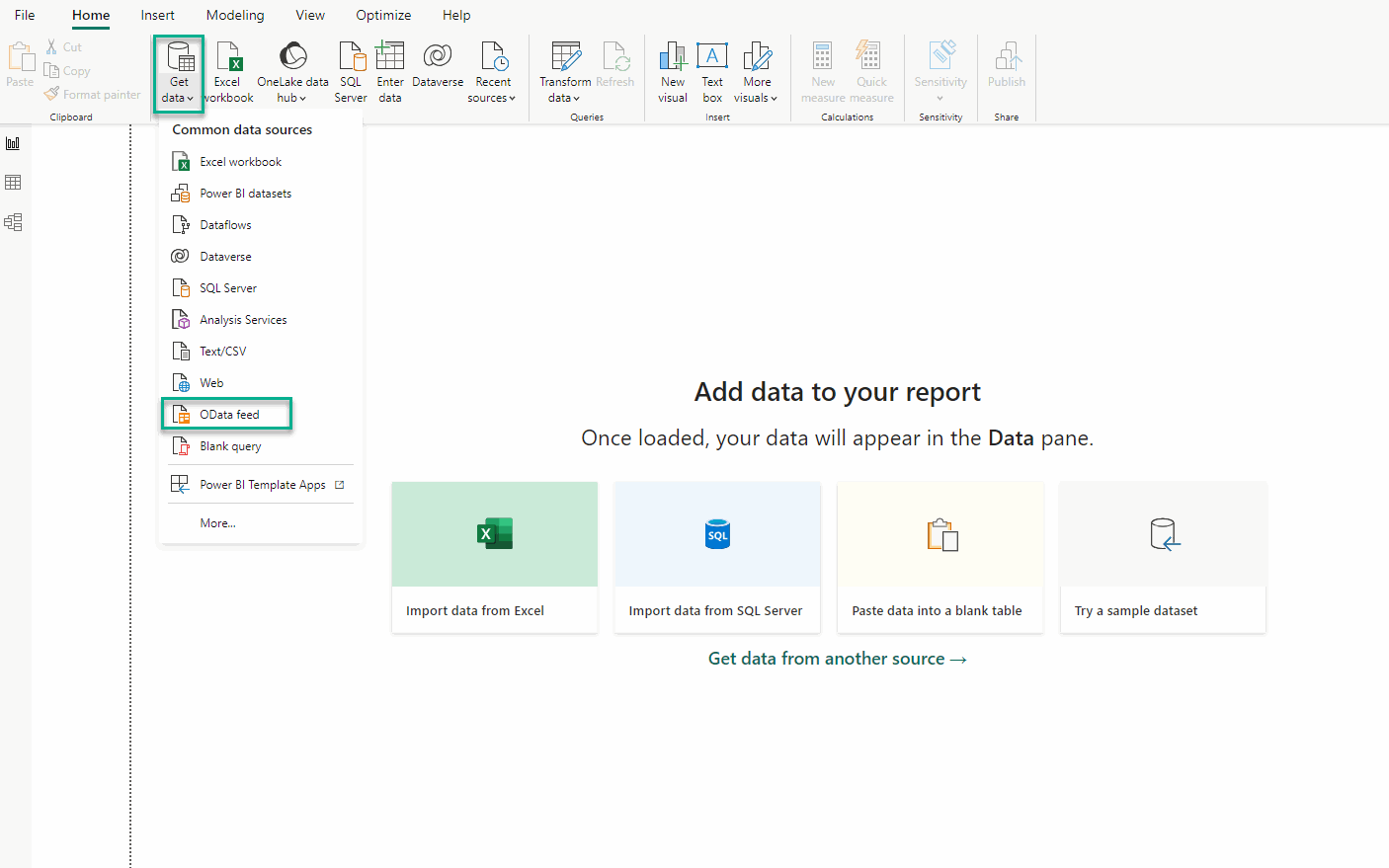
Use the OData feed option for this connector. Interface example: Tempo documentation.
Step 4: Format the Data
Power BI needs consistent field types and relationships to analyze your data correctly. Fortunately, Power BI offers the ability to transform your Shopify data right within your instance. Through filtering, merging, and cleaning, you can achieve the right data structure for your reports.
In Power Query, check that dates, amounts, and identifiers have appropriate data types. In Model view, check the relationships between orders, order lines, products, and customers. An order can contain several line items, so count distinct orders rather than counting every order-line row.
Before building a full dashboard, compare a small date range with Shopify. Confirm that your report uses the same currency, time zone, and sales definition. A successful import does not guarantee matching totals.
Step 5: Create Your Timeline for Data Sharing
You’ll want to work with the latest data to make sure your reports and analyses are fully relevant and up to date. Power BI can import this data automatically, but you need to tell the solution when these automated updates are required.
You can set a schedule within Power BI for refreshing. Choose the timeline that best suits your needs to ensure that information is regularly updated.
- Configure the connector’s own update schedule first. This prepares the Shopify data that Power BI will import.
- Save your report in Power BI Desktop, select Publish, and choose the intended workspace.
- In the Power BI service, open the published semantic model’s settings. A semantic model is the data and relationships behind your report.
- Configure its data-source credentials or cloud connection, then enable the refresh schedule. Set the time zone and refresh times, and apply the changes.
- Run a refresh and check Refresh history. Leave failure notifications enabled so problems do not go unnoticed.
Schedule Power BI after the connector finishes preparing its data. Refreshing Power BI more often cannot make an unchanged connector snapshot fresher.
Microsoft’s scheduled-refresh limits are up to eight times per day for Pro and 48 times per day for Premium Per User or Premium/Fabric capacity. These are scheduled import refreshes, not a promise of real-time Shopify reporting.
What Does the Connection Cost?
The connector is only one part of the budget. Power BI Desktop is free, but publishing and sharing requirements depend on the licenses and capacity your team uses.
| Component | Price or cost basis | What to check |
|---|---|---|
| Power BI Desktop | Free | Suitable for building and viewing reports locally |
| Power BI Pro | US$14 per user/month, paid yearly | Check existing Microsoft 365 entitlements and viewer licensing |
| Power BI Premium Per User | US$24 per user/month, paid yearly | PPU workspace viewers need PPU too |
| Shopify connector | Separate subscription | Row limits, number of stores/data sources, and update frequency |
| Warehouse route | Pipeline, storage, and compute charges | Relevant only if your architecture uses a warehouse |
Microsoft prices exclude tax; regional prices and purchasing terms vary. Check Power BI pricing before budgeting. Prices current as of September 2026.
Troubleshooting Common Integration Issues
You may run into some issues during integration. Here’s how you can troubleshoot some of the most common problems.
Data Is Not Updating Automatically in Power BI
- Check that your Shopify data sources are up to date and accessible for Power BI. In Tempo, confirm the source is ready and its preparation date has advanced.
- Ensure that the network is fully connected and that Power BI has permission to access the data. Update expired or changed feed credentials in the Power BI service.
- Check both schedules: the connector’s data preparation and Power BI’s semantic-model refresh. Inspect Refresh history before changing the schedule.
Power BI Is Displaying the ‘Unable to Connect’ Error
- Make sure you are using the correct connection setting. For the Tempo walkthrough, use OData feed with the connector’s Basic credentials.
- If a firewall or proxy blocks the connection, ask your administrator to allow the required endpoint. Avoid disabling network protection broadly.
- Check that drivers, connectors, and integrators are all updated where your chosen connection requires them. For multiple stores, also check the URL level associated with each set of credentials.
Data Is Transferring Too Slowly
- Optimize your datasets or reduce data model size. Import only the fields and history needed for the report.
- Apply useful filters at the source where supported, so you transfer fewer records.
- Consider incremental refresh only after confirming that your source can handle the required date filtering efficiently. It is not an automatic fix for every connector.
Why Don’t My Numbers Match Shopify?
Start by comparing the same dates, time zone, currency, and metric. Then check these common causes:
- Repeated order rows: Several products in one order can produce multiple rows. Counting them as separate orders inflates the order count.
- Different sales definitions: Gross sales, net sales, total sales, and payments collected are different figures. Do not compare them as if they were interchangeable.
- Refunds and adjustments: Order exports and Shopify Analytics can handle some adjustments differently. Shopify’s sales-discrepancy guide explains these differences.
- Missing records: Check connector row limits, selected filters, and the historical-order access available to your app.
For example, if one order contains three products, you may import three order-line rows. Your order-count measure should still return one order. Check this small example before trusting a month of sales data.
How to Analyze Shopify Data in Power BI
Once everything is set up, how do you start analyzing your Shopify data?
Creating Reports
Power BI can create analytic reports from the datasets you make available to it. After the data has been integrated, you can create reports based on product sales, new and returning customers, customer lifetime value, and other metrics, provided you have the fields and calculations they require.
Start with sales by date and product, plus a distinct order count. More advanced measures, such as customer lifetime value, need a clear definition and sufficient purchase history.
Creating Visualizations
Power BI offers an intuitive interface for building visualizations. Select a visual and assign the fields or measures it needs, such as order date on a chart’s axis and a sales measure as its value.
Power BI offers a range of different charts, from bar and line graphs to funnel charts, as well as basic single-number visualizations.
Viewing Results in the Dashboard
You can pin report visuals to a dashboard in the Power BI service. This makes data easily accessible in the future, enabling longer-term tracking and analysis. Build the report first; a dashboard is a separate view that brings selected visuals together.
Sharing Reports
Power BI is designed to make sharing easy. Reports and visualizations can be shared with colleagues or embedded securely into internal websites, subject to the required licenses and permissions.
Do not use Publish to web for private store or customer data. That feature makes the report and underlying model data accessible publicly without authentication. Use permission-controlled sharing or secure embedding instead. Microsoft’s Publish to web guidance explains the distinction.
When to Use a Warehouse or Custom API Connection
If you need to combine several stores with advertising, finance, or support data, a warehouse gives you a place to prepare those sources before Power BI reads them. Tools such as Fivetran are worth evaluating for the ingestion part; check the Shopify data coverage and destination support for your requirements.
For a custom integration, use Shopify’s GraphQL Admin API. The REST Admin API became legacy on October 1, 2024. New custom apps must use the Dev Dashboard or Shopify CLI; the old workflow for creating them directly in Shopify admin is no longer available. Existing legacy custom apps can continue to work. See Shopify’s API migration guidance and custom-app documentation.
This route requires handling authentication, permissions, pagination, API limits, and updates. A connector is the more practical starting point if you simply want recurring store reports without maintaining that code.
Conclusion
Using Shopify to help sell your products can produce a great revenue stream. But if you aren’t tracking and analyzing your data, you could be missing out on key insights that help you increase revenue, build customer loyalty, and get ahead in the market.
By choosing an effective Power BI integration, your business can gain deeper insights to optimize business operations moving forward. Start with one reporting period, reconcile the results with Shopify, and then enable the refresh schedule your team needs.
Connecting Shopify and Power BI: FAQ
Do I need any additional tools to connect Shopify to Power BI?
Not for a manual CSV import: you can export Shopify orders and load the file into Power BI Desktop. For an automated connection, use a connector or build a pipeline that retrieves Shopify data. Choose the approach based on how frequently the report needs updating and how much maintenance you can manage.
Are there any costs associated with integrating Shopify with Power BI?
There can be connector subscription fees, Power BI licensing costs, and warehouse charges if you use a warehouse. Power BI Desktop itself is free. Check the licenses required for both report creators and viewers, and confirm that the connector’s row limits cover your reporting period.
How often does Power BI update Shopify data?
Scheduled import refresh supports up to eight refreshes per day with Pro and 48 with PPU or Premium/Fabric capacity. Your connector also needs to refresh its Shopify data. The report can only be as current as the data available from that source when Power BI imports it.
How do I create reports in Power BI using Shopify data?
Load your Shopify tables, check their relationships, and create visuals using the fields and measures you want to analyze. Publish the report to the Power BI service when you need online access or sharing. From there, you can pin selected visuals to a dashboard and configure the appropriate access permissions.
Comments 0 Responses